

Redacting a PDF means permanently removing sensitive text, names, account numbers, addresses, so no one can ever recover it. Here’s the critical fact most people get wrong: drawing black rectangles over text does not redact it. The text is still in the file, still selectable, still copy pasteable. Proper redaction deletes the underlying text layer. Browse the PDF tools hub for other document tasks, and read on to learn how to redact the right way.
Why black boxes don’t work
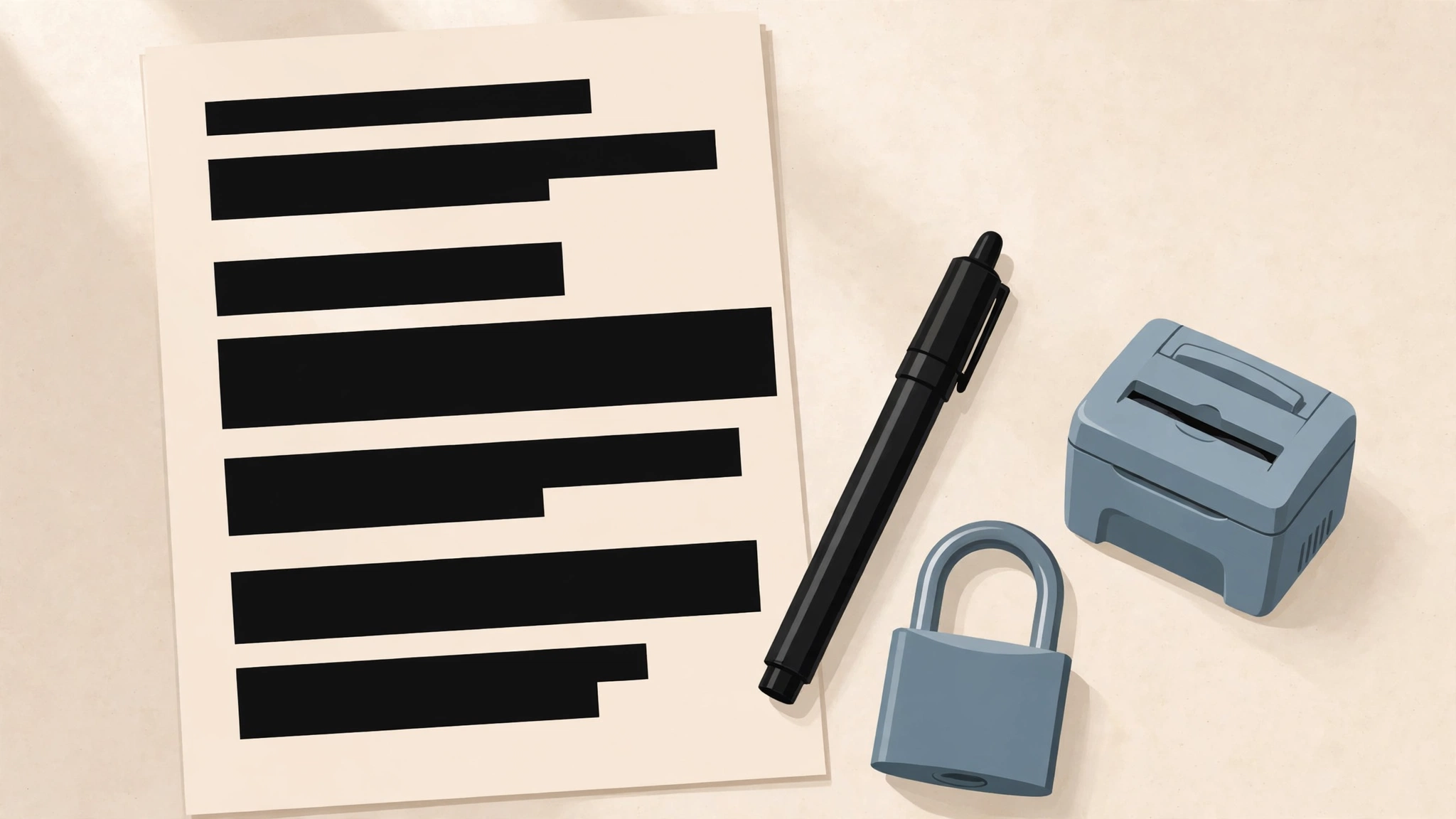
A PDF page has layers: the visible rendering on top and the actual text data underneath. When you draw a black rectangle over a paragraph in a PDF editor or an image tool, you’re only adding a new visual layer on top, the original text remains fully intact in the file. Anyone can select the “hidden” text with their cursor, copy it, or simply delete the rectangle in an editor to reveal everything underneath.
This isn’t theoretical. There have been real, embarrassing public incidents where “redacted” court filings and government documents were un redacted in seconds by copying the text or removing the overlay. If the information matters, a black box is not redaction, it’s decoration.
How true redaction works
Real redaction is a two step operation performed by proper redaction tools (built into Adobe Acrobat Pro and similar professional PDF software):
- Step 1, mark: you select the text to redact. The tool highlights your selections, often in a bright color, so you can review exactly what will be removed before committing.
- Step 2, apply: the tool permanently deletes the selected text from the PDF’s content layer and paints the area black (or your chosen color). The underlying characters are gone from the file, not hidden, removed.
Professional redaction tools also scrub hidden data: metadata (author names, edit history), embedded comments, and OCR text layers in scanned documents. A thorough redaction covers the whole file, not just the visible page.
How to redact a PDF properly
- Use software with a genuine redaction feature (for example, Adobe Acrobat Pro’s Redact tool), not a drawing or annotation tool.
- Search for every instance of the sensitive data first. Use the tool’s search and redact option to catch all occurrences of a name, number, or term across the whole document, missing one instance defeats the purpose.
- Mark all redactions, then review the marks carefully before applying. Check headers, footers, and page numbers too, sensitive data hides in running heads.
- Apply the redactions and save as a new file. Keep the unredacted original separate and secure.
- Sanitize the document: remove metadata, hidden layers, and comments using the software’s document sanitization option.
How to verify your redaction worked
Never trust a redaction you haven’t tested. Open the redacted file and try these checks:
- Try to select the text. Drag your cursor across the blacked out area. If you can select invisible text there, the redaction failed.
- Try copy paste. Select all (Ctrl+A), copy, and paste into a text editor. No sensitive content should appear.
- Check with a text extraction tool. Some PDF readers can export all text; run it and search the output for the sensitive terms.
- Inspect metadata. Check Document Properties for author names, and make sure comments and attachments are gone.
If any check reveals the hidden text, go back and apply a real redaction, do not just add another black box on top.
Worked example: redacting a bank statement for a rental application
A landlord asks for a recent bank statement as proof of income. Your statement is six pages, and it contains far more than the landlord needs: your full account number printed in the header of every page, a partial card number in the account summary, and dozens of personal transactions. The salary credits are the only part that proves income. Here is how to share it safely:
- Work on a copy. Save the statement as statement redacted.pdf before you touch anything. The original stays in your records, untouched.
- Search before you mark. Use the redaction tool’s search function for your account number. In this example it finds nine occurrences: once in the header of each of the six pages, once in the account summary, and twice in payment references. Mark all nine in one pass. This is exactly the step manual redaction misses.
- Mark the rest by eye. Redact the card number in the summary and any other identifiers the landlord has no claim to, such as account details of people who sent you money. Leave the salary credits, your name, and the statement dates visible. They are the point of the document.
- Apply and sanitize. Apply the redactions so the text is deleted, then run the tool’s sanitize option to strip the document metadata, the bank’s PDF may carry an author name and internal reference numbers you never saw on screen.
- Verify like an attacker. Open the finished file, press Ctrl+A, copy, and paste into a text editor. Search the pasted text for your account number. If it appears even once, the redaction failed somewhere, go back to the copy and repeat, do not patch over it.
Two finishing touches are worth considering. If you are emailing the file, you can password protect the redacted PDF and send the password separately, so the statement is not readable by anyone who intercepts the message. And if the landlord only needs the page showing your salary credits, do not send all six pages at all split the PDF, redact that single page properly, and send only it. The safest information is the information you never shared.
Redaction methods compared
| Method | Removes the text underneath? | Can the hidden content be recovered? | Verdict |
|---|---|---|---|
| Black rectangle drawn in an editor | No, it is a separate layer on top | Yes, select, copy, or delete the rectangle | Not redaction at all; never use for real data |
| Black highlighter or annotation | No, annotations sit above the content | Yes, annotations can be removed in an editor | Same failure as the rectangle, better disguised |
| Print it, use a marker, re scan | Effectively yes, the result is a flat image | No, if the marker coverage is fully opaque | Works, but slow, ugly, and the scan can still carry an OCR text layer to check |
| A true redaction tool (mark, then apply) | Yes, the characters are deleted from the file | No | The correct method; still verify afterwards |
Common mistakes to avoid
- Redacting only the first occurrence. Account numbers and names repeat in headers, footers, summaries, and transaction references. Always search and redact across the whole document, then skim every page.
- Forgetting metadata and comments. The visible page can be perfectly clean while the file properties still name the author and the comments still quote the sensitive text. Sanitize the whole document, not just the page surface.
- Ignoring the OCR layer in scans. A scanned statement may look like a picture but carry invisible searchable text behind it. Redact the image region and the text layer, then verify by extracting the text.
- Saving over your only original. Redaction cannot be undone. Keep one unredacted original in a secure place and redact copies, otherwise a mistake means the data is gone for good.
- Emailing the wrong attachment. After all that care, people still attach the original file by habit. Check the filename in the email before sending: it should be the redacted copy, every time.
- Skipping the verification step. A redaction you have not tested with select all, copy paste, and a text search is a hope, not a redaction. The two minute check is what separates the two.
Redacting a scanned PDF, step by step
Scanned documents deserve their own walkthrough, because a scan is a photograph of a page, not text, and that changes where the danger hides. Many scanners and office printers quietly run OCR when they save, embedding an invisible text layer over the image so the file becomes searchable. That invisible layer contains every word on the page, including the ones you are about to cover.
- Find out whether a text layer exists. Open the scan and try to select a single word with your cursor. If words highlight, there is a text layer, and any redaction must remove the text as well as blacken the image.
- Redact in a tool that handles both layers. A proper redaction tool removes the image content in the marked region and deletes the corresponding OCR text. Drawing a rectangle in an image editor blackens pixels only, the invisible text underneath survives and stays searchable.
- Mark generously. On a scan, make each redaction box slightly larger than the text it covers. Scanned pages are often a little skewed, and a tight box can leave the edge of a digit peeking out at an angle.
- Test with fresh OCR. After redacting, run text extraction or OCR over the finished file and search the output for the sensitive terms. For scans this is the definitive test: if new OCR cannot read it and extraction finds nothing, the information is genuinely gone.
- Remember the flat fallback. If no true redaction tool is available, printing the page, covering the text thoroughly with an opaque marker, and re scanning without OCR produces a flat image with nothing underneath. It is slow and the quality drops, but for a page or two it is safer than a fake digital redaction.
Whichever route you take, finish with the same habit as for digital documents: keep one secure original, share only the verified redacted copy, and check the attachment name before the email leaves. Scanned paperwork tends to be the most sensitive paperwork, IDs, statements, medical letters, so it earns the extra two minutes of verification.
Frequently asked questions
Can I redact a PDF for free?
True redaction, deleting the text layer, is a professional feature found in paid tools like Adobe Acrobat Pro. Free PDF editors generally only offer drawing tools, which produce fake redaction (black boxes over live text). For genuinely sensitive material, this distinction matters more than the price: a free black box that leaks the data is worse than useless.
Is highlighting text in black the same as redacting?
No, and this is the most dangerous misconception about redaction. Highlighting or drawing over text adds a visual cover while the text underneath stays fully present and extractable. Real redaction removes the underlying text data from the file. If someone can select, copy, or search the “hidden” text, it was never redacted.
Does redacting a scanned PDF work differently?
Yes, scanned PDFs are images, so there’s no text layer to delete unless OCR has been run. If OCR text exists invisibly behind the image, a proper redaction tool must remove both the image region and the OCR text. The safest approach for scans is to redact the image itself and strip any OCR layer, then verify by running fresh OCR on the result and confirming nothing sensitive is recognized.
Can redacted text ever be recovered?
If redaction was done properly, the text deleted from the file, metadata sanitized, saved as a new file, no, it cannot be recovered from that file. Recovery is only possible when the redaction was fake (overlays) or when an unredacted copy leaks separately. Always keep exactly one unredacted original in a secure location and share only the verified redacted copy.
Should I redact or just delete the pages?
It depends on the document’s purpose. If the sensitive content spans whole pages and those pages aren’t needed, deleting the pages is simpler and safer. Redaction is for when the document must remain complete and readable except for specific passages, like a court filing where most of the text stays public.